Setting Up rsync.net
with Borg Backup Server
rsync.net is a Unix-based cloud storage platform with native BorgBackup support and ZFS snapshots for extra data protection. This guide walks you through connecting an rsync.net account to Borg Backup Server as a remote storage host.
What you'll need
- An rsync.net account with BorgBackup support
- A running Borg Backup Server instance
- An SSH key pair (you'll generate one during setup)
Create an rsync.net Account
Visit rsync.net/products/borg.html and sign up for an account. rsync.net offers special pricing for BorgBackup users. Choose a storage size and region that fits your needs. After sign-up, you'll receive your account credentials via email — your username will look like deXXXX (a short alphanumeric ID).
Generate an SSH Key Pair
rsync.net does not support ssh-copy-id, so you'll need to set up your SSH key manually. Generate a new Ed25519 key pair on your server:
ssh-keygen -t ed25519 -C "rsync.net" -f ~/.ssh/rsyncnet
Then copy the public key to your rsync.net account using scp:
scp ~/.ssh/rsyncnet.pub deXXXX@deXXXX.rsync.net:.ssh/authorized_keys
Replace deXXXX with your rsync.net account ID. You'll be prompted for your password the first time — after this, SSH key authentication will be used.
Note Your Connection Details
Your rsync.net connection details follow a simple pattern based on your account ID. The hostname is your account ID followed by .rsync.net, and the username is the same account ID. rsync.net uses the standard SSH port 22.
Host: deXXXX.rsync.net User: deXXXX Port: 22
Add rsync.net in Borg Backup Server
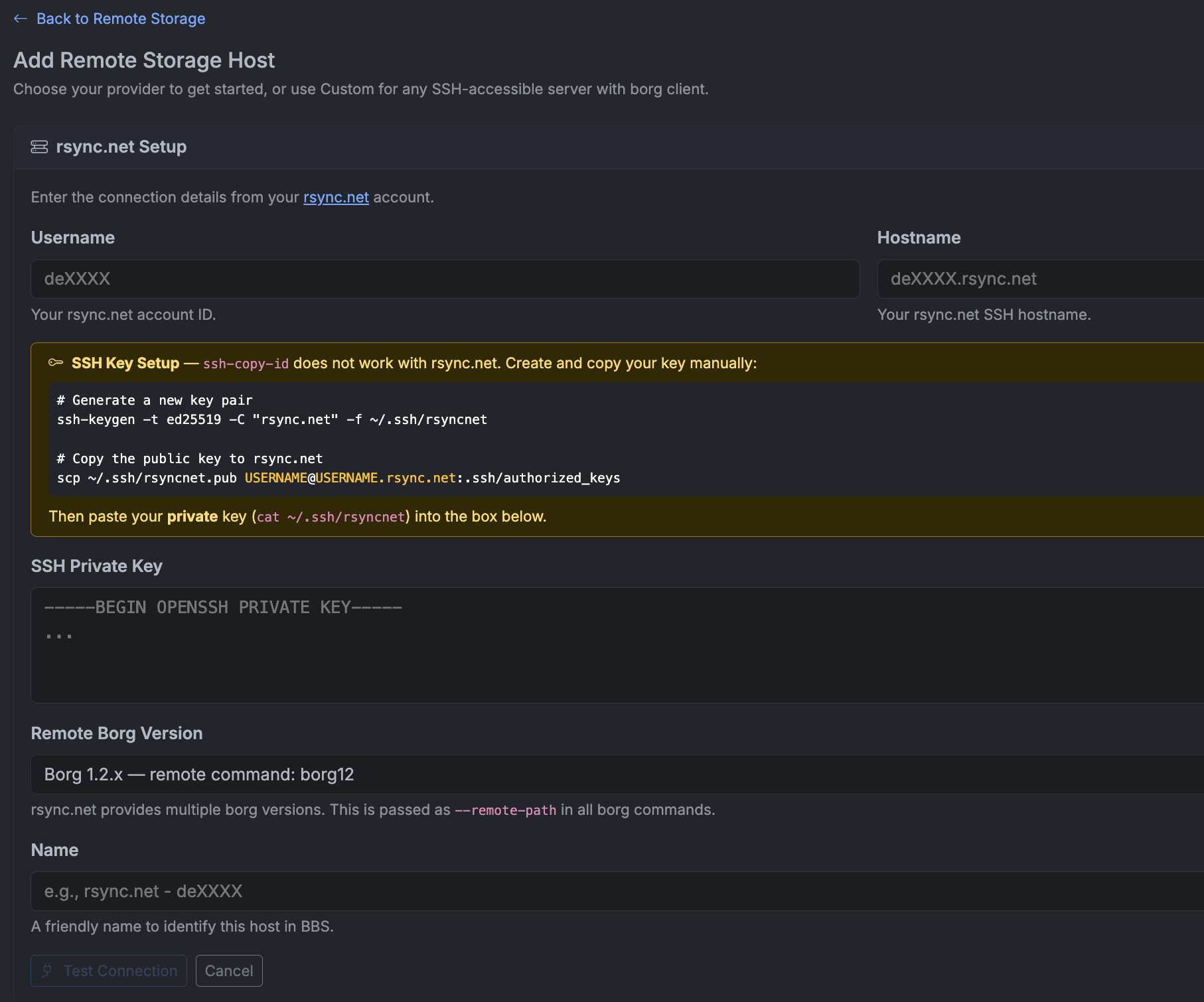
In your Borg Backup Server dashboard, go to Settings → Storage → Remote Storage and click Add Remote Storage Host. Select rsync.net from the provider list.
Enter Connection Details & Test
Enter your rsync.net Username (your account ID, e.g. deXXXX) and Hostname (e.g. deXXXX.rsync.net). Paste the SSH private key from ~/.ssh/rsyncnet that matches the public key you uploaded.
Select the Remote Borg Version — rsync.net provides specific borg binaries (e.g. borg12 for Borg 1.2.x), and this is passed as --remote-path in all borg commands. Give the host a friendly Name for easy identification.
Click Test Connection to verify everything works, then click Add Host to save.
You're all set
Your rsync.net account is now connected as a remote storage host. You can use it when creating backup plans — Borg Backup Server will push encrypted, deduplicated backups to rsync.net over SSH.
Don't have Borg Backup Server yet?